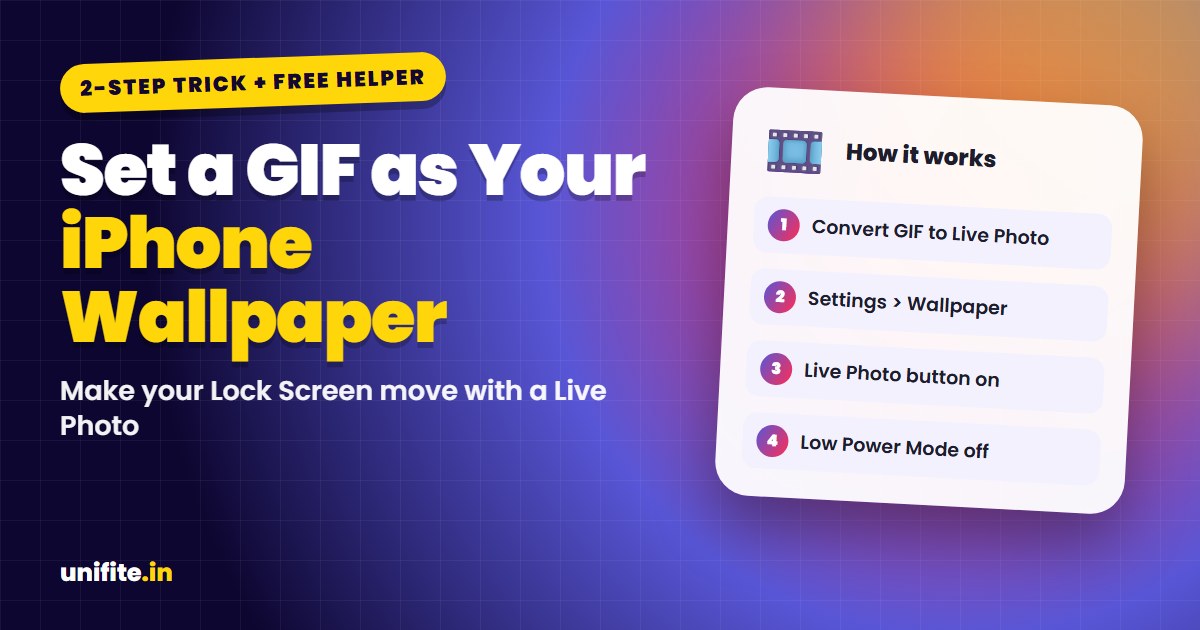
You can’t set a GIF as wallpaper on iPhone directly, because iOS doesn’t play GIFs as wallpapers. The trick is to convert the GIF into a Live Photo first, with a free app like GIPHY, and then set that Live Photo as your Lock Screen wallpaper in Settings > Wallpaper. It moves on the Lock Screen. The Home Screen shows a still image.
Pick your iOS version and where your GIF comes from in the tool below to get the exact steps.
Why iPhone Doesn’t Accept GIFs as Wallpaper
iOS only animates one kind of image on the Lock Screen: Live Photos. A GIF is a different format, so if you pick a GIF in the wallpaper settings, iPhone shows only its first frame. Converting it to a Live Photo turns it into the format iOS understands.
Step 1: Convert the GIF to a Live Photo
With GIPHY (free)
- Install GIPHY from the App Store and open it.
- Find your GIF, or upload your own with the Create button.
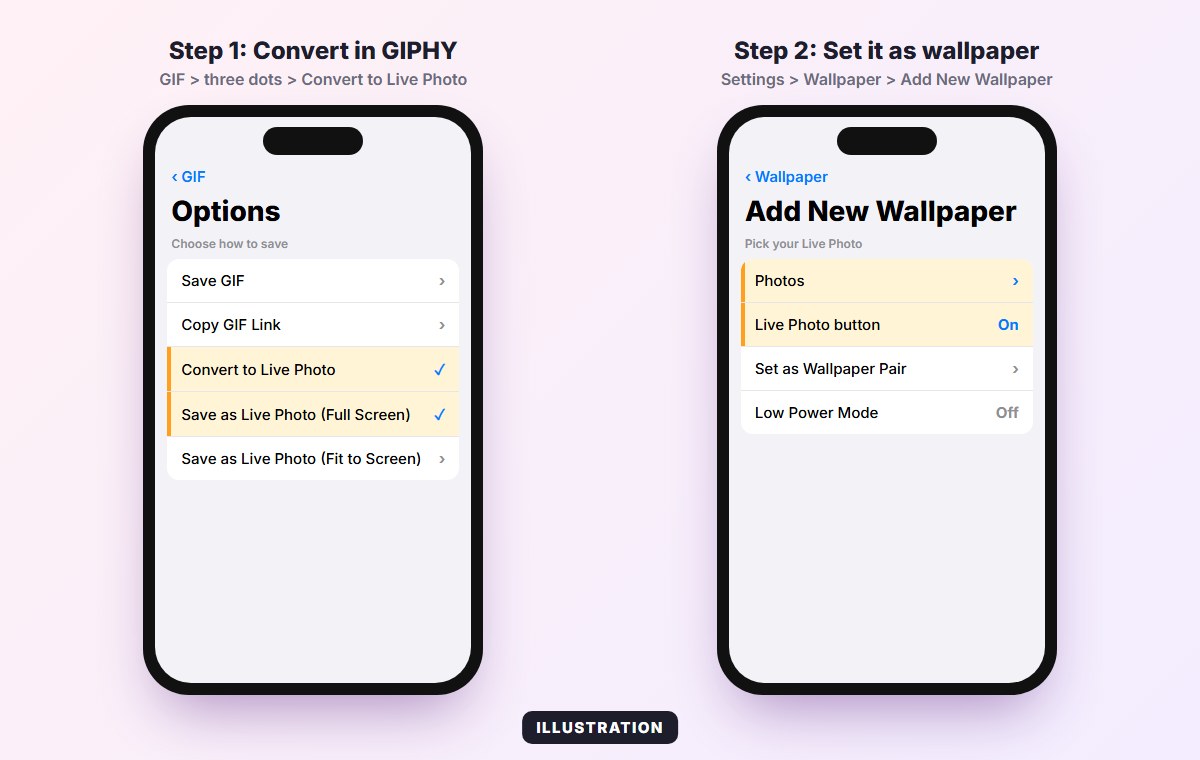
- Tap the three dots under the GIF.
- Tap Convert to Live Photo.
- Choose Save as Live Photo (Full Screen) so it fills the screen.
The Live Photo is saved to your Photos app. You’ll see a “LIVE” label in the top left when you open it.
Other ways
- Your own video: many free apps can turn a short video into a Live Photo. Keep it 3 seconds or shorter for the best result.
- An existing Live Photo: any Live Photo you took with your iPhone camera already works. Skip to Step 2.
Only use GIFs and videos you have the right to use, like your own clips or ones shared for free use on GIPHY.
Step 2: Set the Live Photo as Your Lock Screen Wallpaper
- Open Settings > Wallpaper and tap Add New Wallpaper. (Or press and hold your Lock Screen, tap the + button.)
- Tap Photos and pick the Live Photo you made.
- Make sure the Live Photo button at the bottom is on (the circle icon is not crossed out).
- Pinch to move and resize the image.
- Tap Add, then choose Set as Wallpaper Pair or Customize Home Screen.
To see it move, wake your iPhone and look at the Lock Screen. Depending on your iOS version, the Live Photo plays when you wake the phone or when you press and hold the screen.
GIF Wallpaper Not Moving? Try These Fixes
- Low Power Mode is on. It stops wallpaper animation. Turn it off in Settings > Battery.
- The Live Photo button is off. Edit the wallpaper and tap the Live Photo icon so it’s on.
- The file is not really a Live Photo. Open it in Photos and look for the “LIVE” label. If it’s missing, convert it again.
- The Live Photo is too long. Very long clips may not play as wallpaper. Trim the GIF to about 3 seconds.
- Reduce Motion is on. Check Settings > Accessibility > Motion > Reduce Motion.
- It’s the Home Screen. Live Photos only animate on the Lock Screen. That’s normal.
Does a Live Wallpaper Drain Battery?
A little, because the animation plays when you wake your phone. For most people the difference is small. If battery life matters more, use a still image or turn on Low Power Mode, which pauses the animation.
More Ways to Make Your Lock Screen Stand Out
- Photo Shuffle changes your wallpaper through a set of photos during the day or each time you tap.
- Depth effect lets the subject of a photo cover part of the clock.
- Widgets under the clock show weather, battery or calendar.
Changing other iPhone settings? See our guides on Find My when your phone is off and the best EQ for Apple Music.
Related guides: What’s new in iOS 27.2 and How to fix battery drain after an update.
FAQ
Can you set a GIF as your wallpaper on iPhone?
Not directly. Convert the GIF into a Live Photo with an app like GIPHY, then set the Live Photo as your Lock Screen wallpaper.
Why is my live wallpaper not moving?
Check that Low Power Mode is off, the Live Photo button is on in the wallpaper editor, and the photo shows the “LIVE” label in Photos.
Can the Home Screen have a moving wallpaper?
No. iPhone only animates Live Photo wallpapers on the Lock Screen. The Home Screen shows a still frame.
How long can a Live Photo wallpaper be?
Live Photos are about 3 seconds long. Longer clips are cut down or may not play, so trim your GIF to a short loop.
Is GIPHY’s Convert to Live Photo free?
Yes, the GIPHY app is free to use for converting GIFs to Live Photos.
The Bottom Line
iPhone won’t play a GIF as wallpaper, but a Live Photo works. Convert your GIF in GIPHY, set it in Settings > Wallpaper with the Live Photo button on, and keep Low Power Mode off to see it move on your Lock Screen.
How we checked this: steps were checked against Apple Support and the current GIPHY app in November 2026. Source: Apple: Set a Live Photo as your Lock Screen wallpaper.