
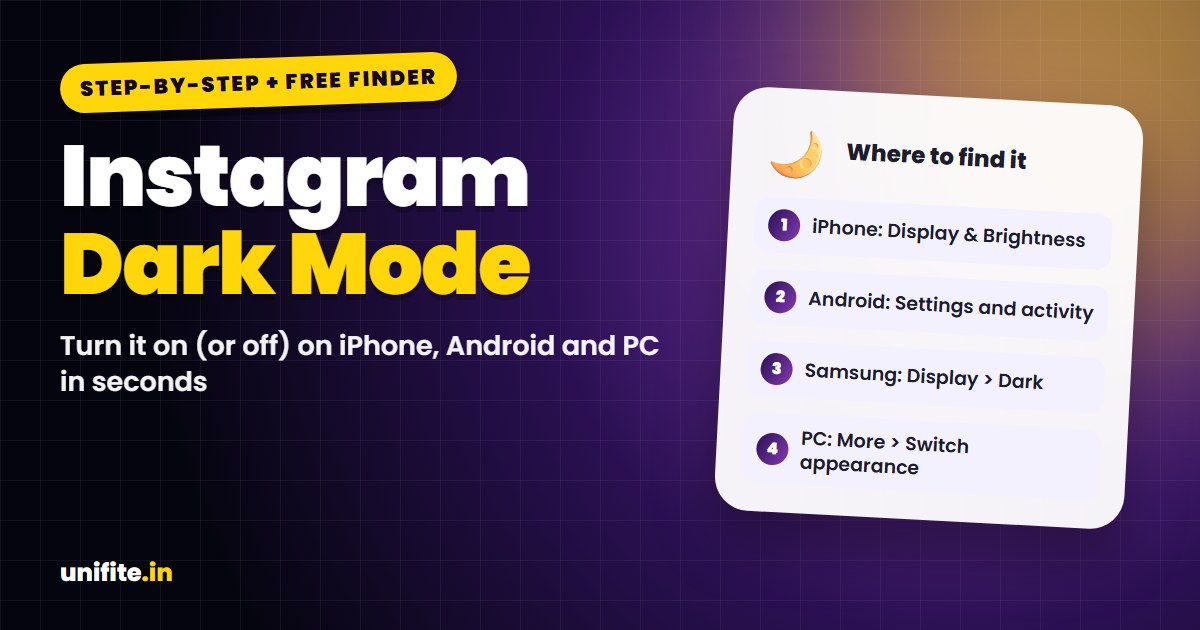
To change Instagram to dark mode on an iPhone, turn on dark mode for the whole phone: Settings > Display & Brightness > Dark. Instagram follows your iPhone’s theme. On Android, open Instagram, tap your profile, tap the menu (three lines), go to Settings and activity and look for Dark mode or Theme. If your version doesn’t have it, switch on your phone’s dark theme instead.
Pick your device in the tool below to get the exact steps for your phone, plus a fix if Instagram won’t switch.
How to Turn On Instagram Dark Mode on iPhone
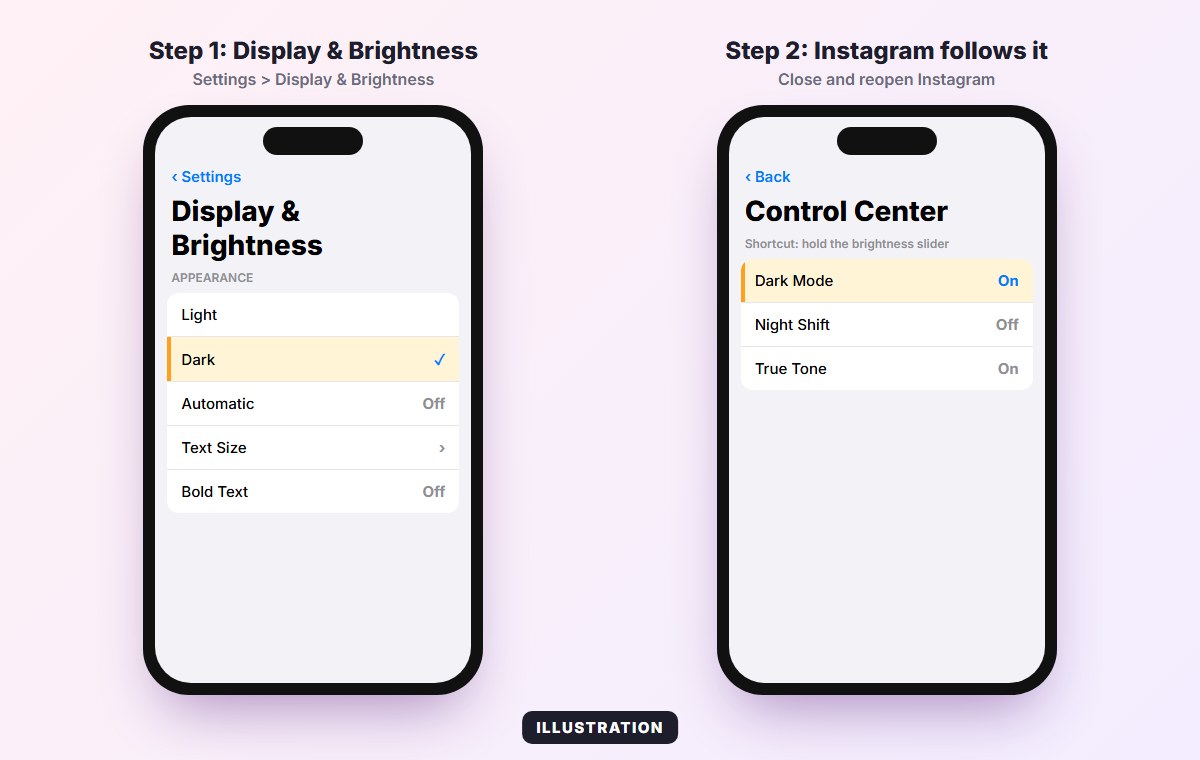
Instagram for iPhone has no separate dark mode switch in most versions. It uses the theme you choose for iOS:
- Open the Settings app.
- Tap Display & Brightness.
- Under Appearance, tap Dark.
- Close Instagram completely (swipe it away in the app switcher) and open it again.
Want dark mode only at night? Turn on Automatic on the same screen, then tap Options to choose sunset to sunrise or a custom schedule.
Faster way: open Control Center, press and hold the brightness slider, and tap the Dark Mode button.
How to Turn On Instagram Dark Mode on Android
Android gives you two options.
Option 1: Inside the Instagram app
- Open Instagram and tap your profile picture in the bottom right.
- Tap the menu (three lines) in the top right.
- Tap Settings and activity.
- Look for Dark mode or Theme (it may sit under Accessibility on some versions).
- Choose On (or Dark). Choose System default if you want Instagram to follow your phone.
Menu names change between Instagram updates. If you can’t find the option, use Option 2.
Option 2: Turn on dark theme for your whole phone
- Open Settings on your Android phone.
- Tap Display (on Samsung: Display > Dark).
- Turn on Dark theme.
When Instagram is set to System default, it switches automatically.
How to Use Instagram Dark Mode on a Computer
On instagram.com there is no theme switch in every version. If your browser or computer is set to dark mode, the site usually follows it:
- Windows: Settings > Personalization > Colors > Choose your mode > Dark.
- Mac: System Settings > Appearance > Dark.
Some versions of Instagram on the web also show a Switch appearance option under More (the three lines at the bottom left).
Instagram Dark Mode Not Working? Try These Fixes
- Restart the app. Fully close Instagram and reopen it after changing the theme.
- Check the in-app setting (Android). If it’s set to Light, Instagram ignores your phone’s dark theme.
- Update Instagram. Older versions may miss the theme option or follow it badly.
- Update your phone. System dark mode needs iOS 13 or later, or Android 10 or later.
- Check Smart Invert or color filters. On iPhone, Settings > Accessibility > Display & Text Size can change how colors look and make dark mode look wrong.
- Battery saver on Android can force a dark theme. If Instagram switches by itself, check your power-saving settings.
How to Turn Off Dark Mode on Instagram
Do the same steps in reverse: on iPhone, choose Light in Display & Brightness, or turn off Automatic. On Android, set Instagram’s theme to Off or Light, or turn off your phone’s dark theme.
Is Dark Mode Better?
Dark mode is easier on the eyes in a dark room and can save battery on phones with OLED screens, because black pixels use less power. In bright daylight, light mode is often easier to read. Many people use Automatic so it switches at sunset.
While you’re changing how Instagram looks, you can also clean up what it shows you. Our free Instagram algorithm reset planner helps you get rid of Reels you don’t want to see. And if you wonder what other people can see about your activity, read can you see who viewed your Instagram profile.
Related guides: How to fix battery drain after an update and Instagram Font Generator.
FAQ
Why is there no dark mode in Instagram settings on iPhone?
On iPhone, Instagram follows the theme you choose for iOS. Turn on Dark in Settings > Display & Brightness and Instagram switches too.
How do I make Instagram dark without changing my whole phone?
On Android, use the Dark mode or Theme option in Instagram’s Settings and activity. On iPhone, most versions don’t offer this, so dark mode is set for the whole phone.
Does Instagram dark mode save battery?
On phones with OLED screens, yes, especially at high brightness. On LCD screens the saving is very small.
Why did my Instagram switch to dark mode by itself?
Your phone is probably set to Automatic appearance or a battery saver that turns on the dark theme. Check Display settings.
The Bottom Line
On iPhone, Instagram dark mode comes from your phone’s Display & Brightness setting. On Android, you can set it inside Instagram or follow your phone’s theme. If it doesn’t switch, restart the app and update it.
How we checked this: steps were checked against Apple Support, Instagram’s Help Center and current app versions in November 2026. Menu names can change. Sources: Apple: Use Dark Mode on your iPhone and iPad, Instagram Help Center.