
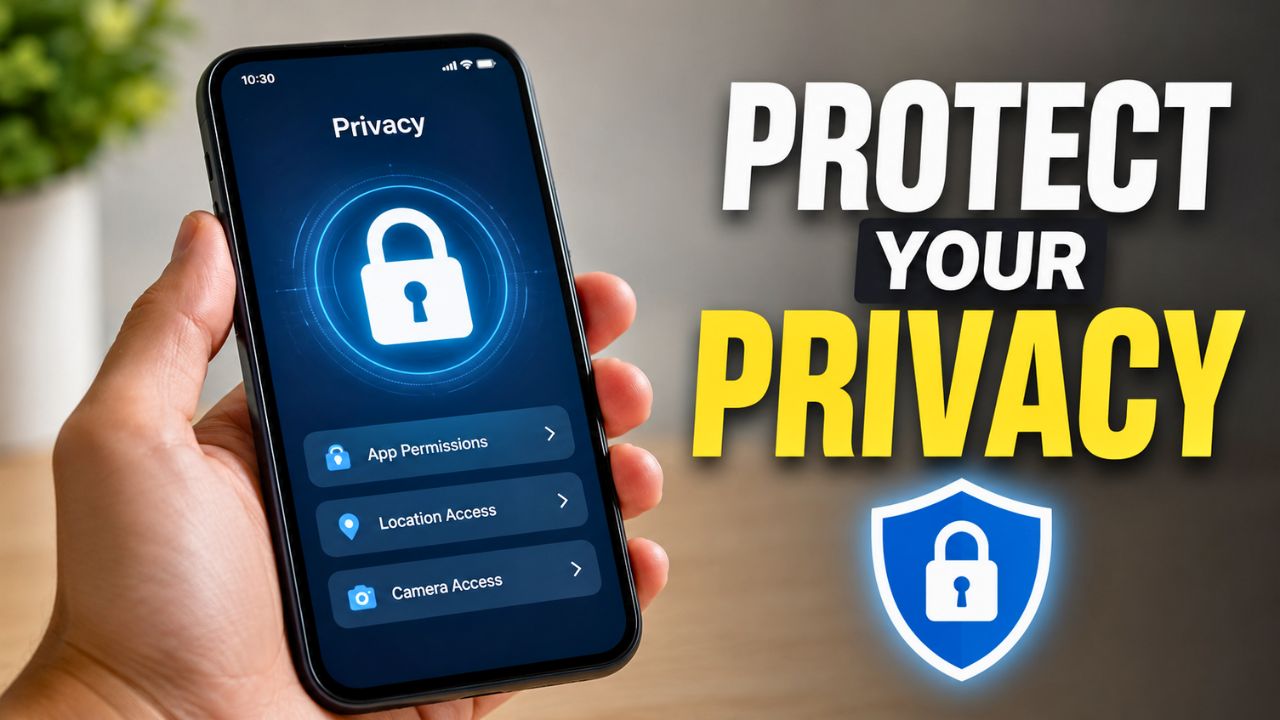
Your smartphone holds far more personal information than most people realize. From banking apps and payment wallets to private photos, emails, passwords, and social media accounts, nearly every aspect of your digital life is stored on a single device.
That’s why enabling the right privacy settings is no longer optional it’s one of the easiest ways to protect yourself from data theft, unwanted tracking, and cyber threats.
Many users spend thousands of rupees on the latest smartphone but continue using the default privacy settings without ever checking what apps can access.
In many cases, apps have permission to use your location, microphone, camera, contacts, or files even when they don’t actually need them.
Taking just a few minutes to review these settings can significantly improve your phone’s security while giving you greater control over your personal data.
1. Review App Permissions Regularly
Every app requests certain permissions before it can access features such as your camera, microphone, contacts, storage, or location. While some permissions are necessary, others may not be. For example, a navigation app needs access to your location, but a simple calculator app usually doesn’t.
Open your phone’s Privacy or App Permissions section and review what each app can access. If you find unnecessary permissions, revoke them immediately. Most modern Android and iPhone devices also let you allow permissions only while using the app, which is often the safest option.
2. Turn Off Precise Location for Unnecessary Apps
Many apps request your exact location even though they can function perfectly with only an approximate location. Sharing your precise location continuously can expose your daily routine, workplace, or home address.
Instead of granting permanent access, choose options like “While Using the App” or “Approximate Location” whenever available. This simple change reduces unnecessary tracking without affecting the app’s normal functionality.
3. Enable Two-Factor Authentication (2FA)
Your smartphone is often connected to your Google account, Apple ID, banking apps, and social media profiles. If someone manages to steal your password, these accounts could become vulnerable.
Enabling Two-Factor Authentication (2FA) adds another layer of protection by requiring a verification code or authentication prompt before anyone can sign in. Even if your password is compromised, unauthorized access becomes much more difficult.
4. Use a Strong Screen Lock
A screen lock is your first line of defense if your phone is lost or stolen. Avoid simple PINs like 1234 or birthdays that are easy to guess.
Instead, use a strong six-digit PIN, an alphanumeric password, fingerprint authentication, or facial recognition if your device supports secure biometric authentication. Combining biometrics with a strong PIN provides even better protection.
5. Check Your Privacy Dashboard
Most recent Android smartphones include a Privacy Dashboard that shows which apps have recently accessed your camera, microphone, and location. iPhones provide similar privacy reports through App Privacy settings.
Reviewing this information occasionally helps you identify apps that may be accessing sensitive features more often than expected. If something seems suspicious, you can remove the permission or uninstall the app altogether.
6. Disable Ad Personalization
Many apps and advertising networks collect usage data to display personalized advertisements. While this isn’t always harmful, limiting ad tracking improves your overall privacy.
Both Android and iPhone allow users to reduce ad tracking through their privacy settings. Disabling ad personalization won’t stop ads entirely, but it can reduce the amount of personal information shared for targeted advertising.
7. Keep Your Smartphone Updated
Software updates aren’t only about new features. They often contain important security patches that fix newly discovered vulnerabilities.
Delaying updates for weeks or months can leave your device exposed to security risks that have already been fixed by the manufacturer. Whenever possible, enable automatic security updates to keep your smartphone protected against the latest threats.
Quick Privacy Checklist
| Privacy Feature | Why It Matters |
|---|---|
| Review App Permissions | Prevent unnecessary access to personal data |
| Approximate Location | Reduce continuous location tracking |
| Two-Factor Authentication | Add extra account security |
| Strong Screen Lock | Protect data if phone is lost |
| Privacy Dashboard | Monitor app activity |
| Disable Ad Tracking | Improve personal privacy |
| Software Updates | Receive latest security patches |
Final Thoughts
Protecting your smartphone doesn’t always require installing expensive security apps. In many cases, the most effective privacy features are already built into Android and iPhone devices you simply need to enable them. Reviewing app permissions, limiting location access, turning on two-factor authentication, and keeping your device updated can dramatically reduce your risk of unauthorized access and data misuse.
As smartphones continue to store more sensitive information than ever before, taking a proactive approach to privacy is one of the smartest habits every user can develop. Spending just a few minutes adjusting these settings today can help safeguard your personal information for years to come.
Frequently Asked Questions
Which smartphone privacy feature is the most important?
Using a strong screen lock combined with Two-Factor Authentication offers one of the best levels of protection for most users.
Should I allow every app to access my location?
No. Only grant location access to apps that genuinely require it, and prefer “While Using the App” or “Approximate Location” whenever possible.
How often should I review app permissions?
Checking your app permissions every two or three months is a good practice, especially after installing new applications.
Do software updates improve privacy?
Yes. Most updates include security fixes and privacy improvements that help protect your device from newly discovered vulnerabilities.