
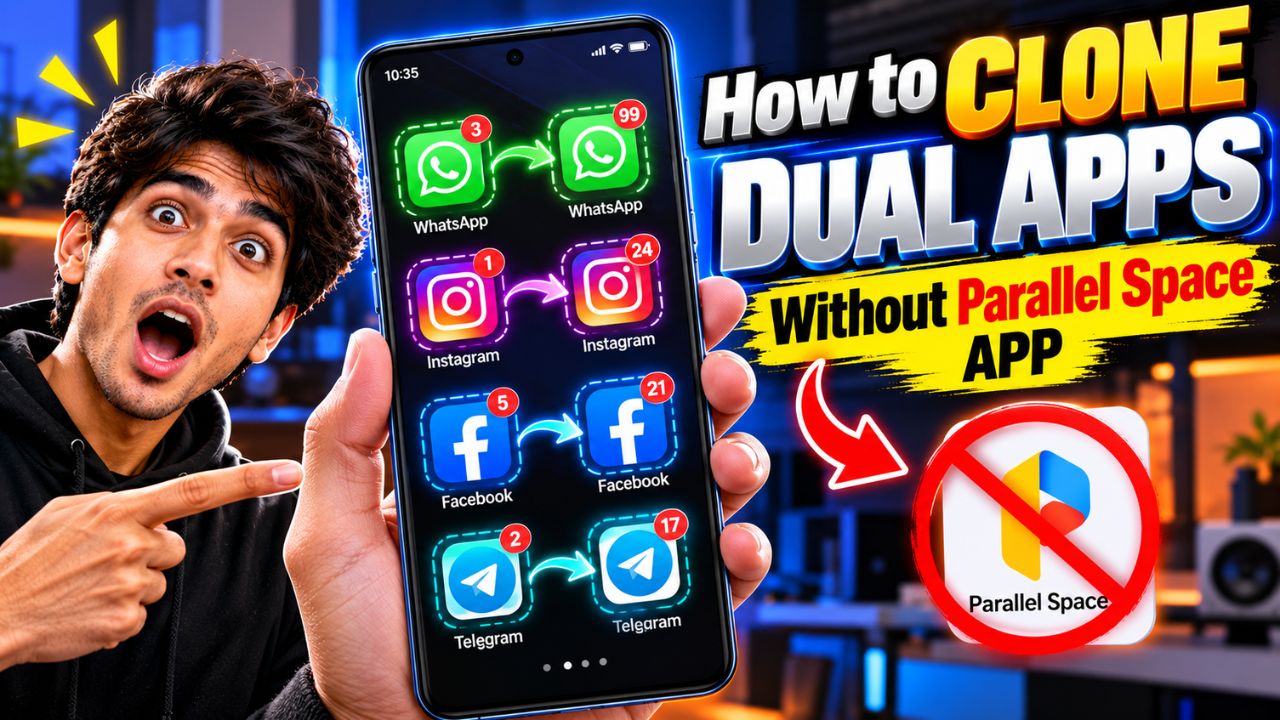
Want to use two WhatsApp, Instagram, Facebook, or other app accounts on the same phone without installing Parallel Space app? You may not need any extra app at all.
Many Android smartphones include a built-in app cloning feature that lets you create a second copy of supported applications.
You can use the original app for one account and the cloned version for another, all on the same device.
In this guide, you’ll learn how to clone dual apps without Parallel Space, where to find the feature on popular Android phones, and what to do if your device doesn’t support it.
What Is Dual App Cloning?
Dual app cloning creates a separate instance of a supported application on your phone. This allows you to sign in to two different accounts without constantly logging out of one account and into another.
For example, you could use one supported messaging account for personal conversations and another for work.
The feature has different names depending on your smartphone brand:
| Smartphone brand | Feature name |
|---|---|
| Samsung | Dual Messenger |
| Xiaomi, Redmi and POCO | Dual apps |
| OnePlus | App Cloner or Parallel Apps, depending on the model |
| OPPO and realme | App Cloner or a similar cloning feature, depending on the model |
| Vivo and iQOO | App Clone or a similar feature, depending on the model |
Not every phone supports app cloning, and the list of compatible applications varies by device and software version.
Method 1: Clone Apps Using Your Phone’s Built-In Feature
This is the easiest method because you don’t need to install Parallel Space or another third-party cloning app.
Follow these steps:
- Open Settings on your Android phone.
- Tap the search bar at the top of Settings.
- Search for terms such as Dual Apps, App Cloner, Dual Messenger, or App Clone.
- Open the matching setting if it appears.
- Select the application you want to duplicate.
- Turn on the available toggle or tap Install or Enable.
- Return to your home screen or app drawer.
- Open the second app icon and sign in with your other account.
The cloned application may have a small badge or a different icon to help you distinguish it from the original.
Tip: If you can’t find the setting, check your phone’s model-specific instructions. The feature may be unavailable on your device or may support only certain applications.
Method 2: Clone Apps on Samsung Phones
Samsung Galaxy phones that support Dual Messenger can create a second instance of compatible messaging and social applications.
Here’s how to enable it:
- Open Settings.
- Tap Advanced features.
- Select Dual Messenger.
- Find the app you want to clone.
- Turn on its switch.
- Confirm by tapping Install, if prompted.
- Open the newly created app and sign in with your second account.
You can also configure a separate contacts list for supported Dual Messenger apps.
Samsung’s feature is available only on supported models and compatible applications. For additional details, visit the official Samsung Dual Messenger guide.
Method 3: Create Dual Apps on Xiaomi, Redmi and POCO Phones
If you use a Xiaomi, Redmi, or POCO smartphone, look for the built-in Dual apps feature.
Follow these steps:
- Open Settings.
- Select Apps.
- Tap Dual apps.
- Choose the application you want to duplicate.
- Enable the feature for that app.
- Return to your home screen and open the cloned version.
- Sign in with your second account.
The cloned app maintains separate app data from the original, allowing you to use different accounts independently.
The exact menu names may vary depending on your device and software version. You can check Xiaomi’s official Dual apps instructions for more information.
What If Your Phone Doesn’t Have an App Cloning Feature?
If you cannot find Dual Apps, App Cloner, or a similar option, try these alternatives.
1. Check for a Second Account Option Inside the App
Some applications offer built-in account switching or support multiple accounts. Check the app’s settings before installing another tool.
This may be enough if you only need to switch between accounts rather than keep two separate app instances running.
2. Check Whether Your Phone Supports Multiple Users
Some Android devices offer multiple user profiles. You may be able to install and use an application separately under another user profile.
To check, open Settings and search for Multiple users or Users. Availability depends on the phone manufacturer and software version.
Keep in mind that switching user profiles is less convenient than opening a cloned app directly from your home screen.
3. Consider a Trusted Third-Party App
If your phone doesn’t support native app cloning, a third-party solution may be an option. However, research the developer, permissions, privacy policy, and recent reviews before installing one.
A cloning app may require access to notifications, files, or other sensitive information. Avoid granting permissions that aren’t necessary for its advertised functionality.
Also, some applications may block cloned environments or refuse to work correctly inside them.
Is It Safe to Clone Apps Without Parallel Space?
Using a built-in feature provided by your smartphone manufacturer is generally the best starting point. It avoids the need to give a separate cloning utility access to your apps and data.
Still, keep these points in mind:
- Download applications from trusted sources.
- Use separate login credentials when setting up another account.
- Check whether notifications work correctly in the cloned app.
- Remember that cloned apps consume additional storage and may use more battery.
- Review the app’s terms if it restricts multiple accounts or modified environments.
Never share verification codes or passwords with an app-cloning service.
Why Is the Dual Apps Option Missing on My Phone?
There are several possible reasons:
- Your phone model doesn’t support app cloning.
- Your software version uses a different name or menu location.
- The application you want to clone isn’t supported.
- Your phone’s manufacturer has disabled the feature in your software build.
Try searching for different feature names in Settings. If the option still doesn’t appear, check the manufacturer’s support documentation for your exact phone model.
Final Verdict
You can often clone dual apps without Parallel Space by using your Android phone’s built-in cloning feature. Search Settings for Dual Apps, App Cloner, Dual Messenger, or App Clone, then enable the feature for a supported application.
Samsung, Xiaomi, Redmi, POCO, and several other brands offer similar tools on supported devices. If your phone doesn’t include one, check for multiple-account support inside the app or explore other options carefully.
The best method depends on your smartphone model and the app you want to duplicate. Start with the built-in feature because it’s usually the simplest way to run two supported app accounts on one phone.


![How to reduce battery drain after [AndroidiOS version] update](https://unifite.in/wp-content/uploads/2026/10/How-to-reduce-battery-drain-after-AndroidiOS-version-update-218x150.jpg "How to Reduce Battery Drain After an Android or iOS Update (2026)")